Space Shooter (AR and Non-AR) — Unity Asset — AR Image Tracking Game Template

Space Shooter (AR & Non-AR) — cross-platform Unity Asset that implements a top-down template of a mobile game: destroy the space and save your life with full immersion in AR Image Tracking!

Note: The asset is downloaded into your project as a Template (Complete Project) and has a free external dependency. Read the “Getting Started” Tutorial to Import it correctly.
Check out the Support section if you need help.


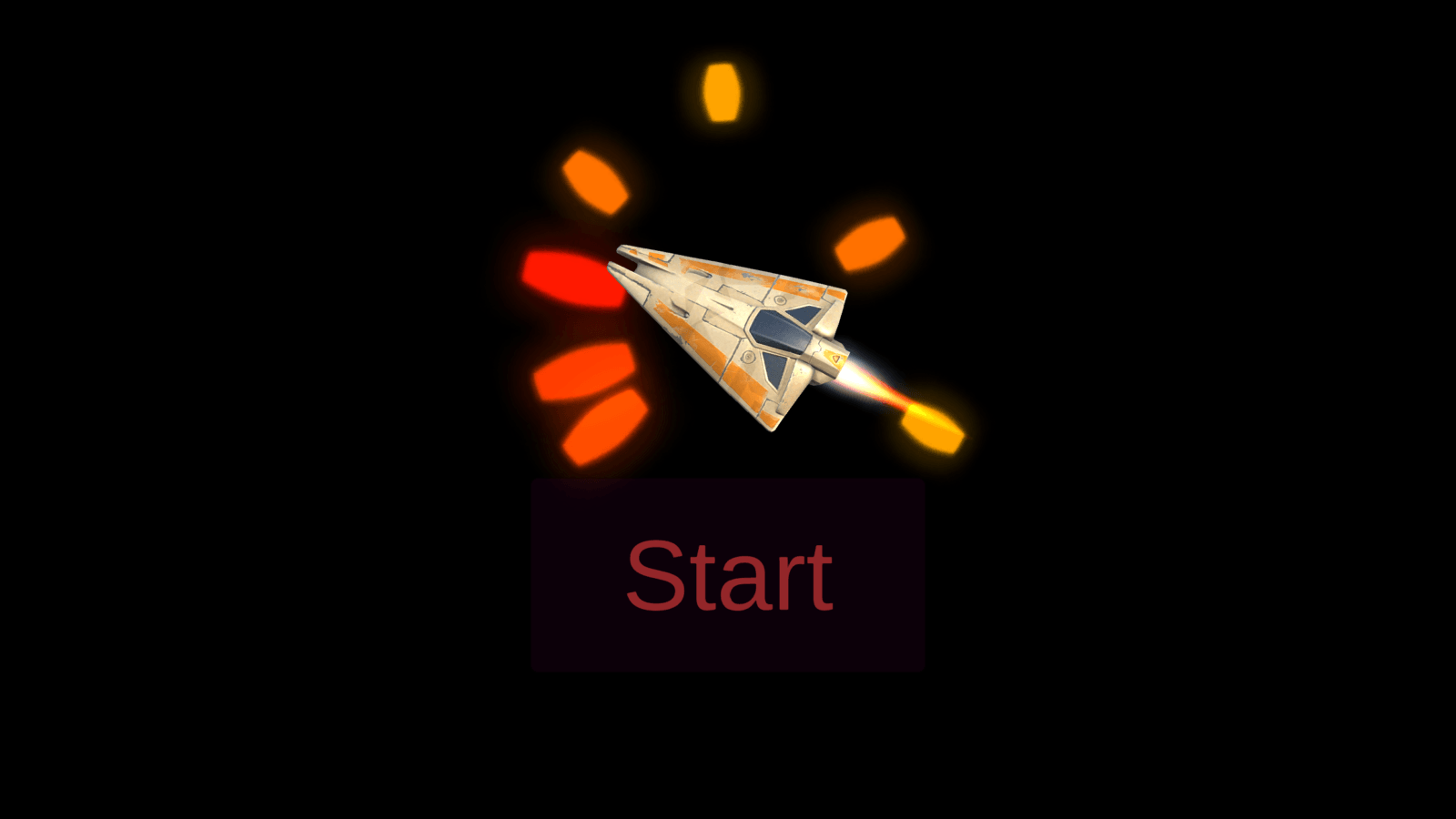
Game Modes: AR and Non-AR
You can choose Game Mode on the Demo Scene before the start:
- Non-AR Mode (for all tested platforms) with the next Player Movement Modes:
- Desktop: A, D or Arrow Keys.
- Mobile: Drag Gesture in any area of the screen.
- AR Mode (if it’s available, user can see a button to activate it) with the next features using the AR Foundation (ARCore, ARKit) — Augmented Reality engine:
- Image Tracking with Operating the Player (Spaceship) by AR Marker (Reference Image): rotational and horizontal movement — it’s a translation from 3D Motion of AR Marker to
2D Motion of the Player. - AR Avatar (Arrow) of Tracked Image to Visualize Player Direction.
- AR Onboarding UX with Transparent Video Manuals & AR States.
- Image Tracking with Operating the Player (Spaceship) by AR Marker (Reference Image): rotational and horizontal movement — it’s a translation from 3D Motion of AR Marker to
Features of Space Shooter
Shoot like a Pro with your amazing Game:
- Play an Endless Shooter with only one goal: Get the Best Score!
- Kill Enemies: Spaceships, Spaceship Bolts and Asteroids.
- Defend your own Spaceship from Enemy Damage:
- Option: Turn on the Player Damage Zone (in addition to the player’s collider) at the bottom of the screen to provide Hard Mode.
- Be Warned about Enemy Attacks via Red Fullscreen Flashes & Health Bar.
- Dodge Carefully due to the Enemy Wave System: Wave Count, Enemy Count, Delays.
Package Contains
- Unified Demo Scene for Both Modes (AR and Non-AR).
- Random Object Pooler to control Object Pools (Player Bolts; Enemies: Asteroids, Asteroid Death Explosions, Spaceships, Spaceship Bolts, Spaceship Death Explosions).
- Menu Scene.
- Permission Scene with Camera Permission Request using free Native Camera.
- Loading Screen to switch scenes seamlessly.
Check the Map of Unity Assets to choose the product that best suits your needs.
Limitations
Asset doesn’t affect the quality of Image Tracking that provided by AR Foundation (ARKit, ARCore). Image Tracking on iOS works better than on Android.
Lighting in the Real World around you is Crucial for AR. If you notice that AR Avatar is behaving unusually, then Improve the Lighting of the Environment.
Tutorial
This tutorial is relevant for Space Shooter 5.0.
Tutorial for the previous version can be found only in the asset folder.
Getting Started with Space Shooter
Folders & Files in the package by default:
- Makaka Games;
- XR.
Steps
If you have any issues with the first launch then just Reach Support and Get Help.
- Create a New Unity Project with Unity 6000.3.4 & the “Universal 3D” Template.
- File > Build Profiles > Platforms > Windows, Mac, Android, iOS, Web > Switch Platform.
- Next Packages must be manually installed with Git & Unity Package Manager. I recommend using indicated versions to get a guaranteed experience:
- Native Camera 1.5.0.
Hash value for installing: 72f5ebba26c219b4c4cda202bff2f59bfdaa47f8
- Native Camera 1.5.0.
- Download and import the Space Shooter into Unity.
- Go through the Warning Windows:
- Click “Import” to overwrite the Project Settings with predefined ones.
- Click “Install/Upgrade” for Unity Package Manager dependencies.
- “Import Unity Package” window:
- Click “Next”.
- Click “Import”.
- Go through the Warning Windows:
- Next Packages are provided with Unity Package Manager, and they are already installed for this Asset by default. If packages are missing (Warning Window did not appear) then install them again with Package Manager:
- Unity UI 2.0.0:
- Always Required: Window > TextMeshPro > Import TMP Essential Resources.
- AR Foundation 6.3.2;
- Apple ARKit XR Plugin 6.3.2;
- Google ARCore XR Plugin 6.3.2;
- Input System 1.17.0.
- Unity UI 2.0.0:
- Reopen Unity Project.
- Open Scene: Makaka Games > Space Shooter > Scenes > Game.
- Required for AR: Prepare AR Marker for Image Tracking to Point Device Camera on it:
- Open Reference Image Library: Makaka Games > Publisher > AR > AR Foundation Base > Image Tracking > Textures > ReferenceImageLibrary.
- You can use the default AR Markers, but if you need your own (e.g. Logo) then indicate here a unique contrast image with clear lines for better recognition. Specify size as you’d expect to find it in the user’s real-world environment.
- Print or Open AR Markers on any Display (Laptop/Smartphone).
- Test in the Unity Editor or Build.
“$” GameObject
Some Scenes have $ GameObject, which has the main control script for the scene.
Various modules interact with each other with the $.
Testing and Building
All tested platforms support Non-AR Mode.
If AR Mode is available, user can see a button to activate AR Mode on the Demo Scene before the start.
iOS, Android: AR & Non-AR
AR Mode can be tested in the Unity Editor with AR Foundation > XR Simulation.
To understand how Image Tracking behaves in the Build, learn Testing AR Build.
macOS, Windows: Non-AR
You can test immediately in the Unity Editor from the box, but to Make a Build, you need to Uncheck the Next Flags in the Edit > Project Settings > XR Plug-in Management > Windows/Mac settings:
- Initialize XR on Startup.
WebGL: Non-AR
Learn the Article called WebGL and Unity about Building and Testing Unity games and apps for WebGL.
Tested with Platforms
- Mobile Platforms:
- AR & Non-AR: iOS on iPhone 15;
- AR & Non-AR: Android on Samsung Galaxy A71;
- Non-AR: WebGL in Google Chrome.
- Desktop Platforms (Non-AR):
- Windows;
- macOS;
- WebGL in Google Chrome.
Support
First, read the latest docs online.
If it didn’t help, get the support:
Changelog
Check the current version of Space Shooter on the Asset Store.
The latest versions will be added as soon as possible.
5.0 (Unity 6.3):
Improvements:
- Unity 6000.3.4 with Modern Standards of Project Settings (based on New Unity Project).
- URP (Universal Render Pipeline) to improve performance (instead of the Built-in Render Pipeline).
- Input System (New Standard in Unity) for All Project-related Scripts: instead of Input Manager.
- Android: Vulkan Graphics API first (and Linear Color Space).
- AR Foundation 6.3.2.
- Native Camera 1.5.0. The project now checks the Package Installation, which helps avoid errors when importing Space Shooter.
- Remove Unused Tags & Quality Levels.
- Namespaces for All Scripts.
4.0:
Features:
- AR Engine: AR Foundation (ARCore, ARKit) + Image Tracking:
- AR Avatar (Arrow) of Tracked Image to Visualize Player Direction.
- AR Onboarding UX with Transparent Video Manuals & AR States.
- Editor Testing with AR Foundation > XR Simulation.
- “Select Mode” Panel (on the Demo Scene before the start, you can choose Game Mode):
- AR Mode (if it’s available, user can see a button to activate it),
- Non-AR Mode (all tested platforms support it). Move the Player by:
- Drag Gesture in any area of the screen on Mobiles.
- A, D or Arrow Keys on Desktop.
- Non-AR Desktop Support:
- Windows,
- macOS.
- Non-AR WebGL Support:
- Desktop;
- Mobiles via HTTPS: iOS & Android. Learn WebGL Tutorial.
- Using of Native Camera to check Camera Permission before the main scene.
Improvements:
Changes:
- Deprecated: Vuforia AR Engine.
3.2:
- Unity 2019.2.9;
- Vuforia (8.5.8) Shipping Way — Unity Package Manager;
- Scene GUI Layout — iPhone XS.
3.1:
- Unity 2019.1;
- Vuforia 8.1.7.
3.0 (Object Pools: New Architecture & More Performance):
GameControllerAR initializes PlayerControllerAR & each Object Pool for Enemies.
PlayerControllerAR initializes Object Pool for Player Bolts.
There are 6 Object Pools in total:
- Player Bolts,
- Enemy Asteroids,
- Enemy Asteroid Death Explosions,
- Enemy Ships,
- Enemy Ship Bolts,
- Enemy Ship Death Explosions.
2.2:
- Option: Increasing the count of enemies for the next wave by the target number.
- Complete caching of all game objects (remove all unnecessary calls of Instantiate()).
2.1:
- Unity 2018.2 version;
- TextMesh Pro texts for the Menu Scene.
2.0 (Complete AR Game for Mobiles):
- Unity 2018.1 version;
- AR Marker Operates the Spaceship: rotation and horizontal movement;
- Clean Scene Environment for AR;
- Menu Scene;
- Screens in Game Scene: Start Tutorial, Game Over, Win; Wave Number on HUD;
- Progressive Health System with Health Slider UI and Fullscreen Blinking for Player;
- Damage Amount for Enemies;
- Colored Particles for Asteroids;
- Player Damage Zone (at the bottom of the screen, in addition to the player’s collider);
- AR Indicator on HUD;
- TextMesh PRO for Texts (texts are updated when really needed);
- Caching of all Components & Strings;
- Load Screen Control;
- Public Unity Events for more flexibility (OnInitialize, OnGameStart, OnGameWin, OnGameOver…).