Face Tracking AR App — Unity Asset

Face Tracking AR App — Unity Asset and Photo/Video App Template for Mobiles (iOS, Android) with Augmented Reality, Face Recognition & Your Own Texture Creation. This is Texture Generator.
User-generated content (UGC) is at the heart of the cross-platform application.

Notes:
- The asset is downloaded into your project as a Template (Complete Project), which has external dependencies (free or paid). Read the “Getting Started” Tutorial to Import it correctly.
- The asset uses a different Color Picker than in the Video Demo.
Check out the Support section if you need help.


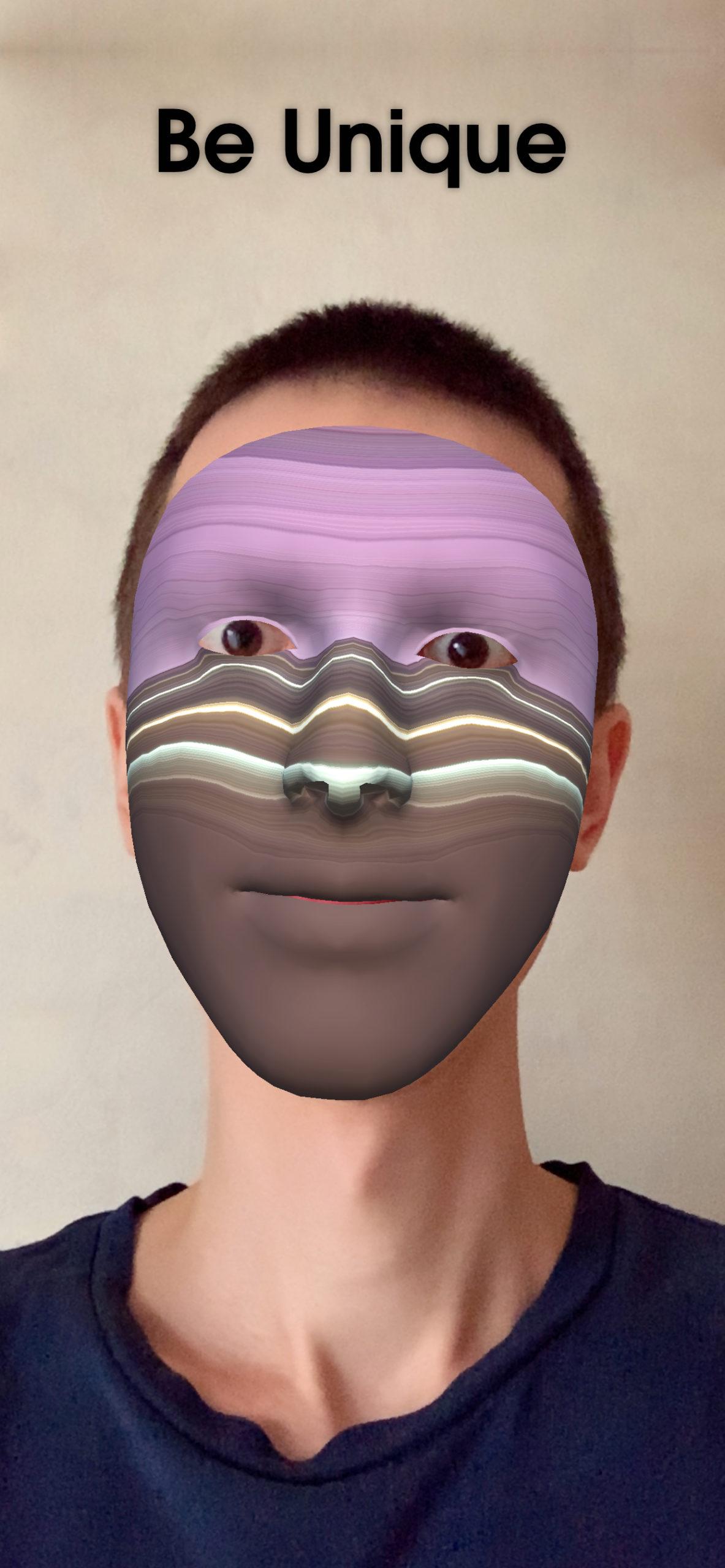
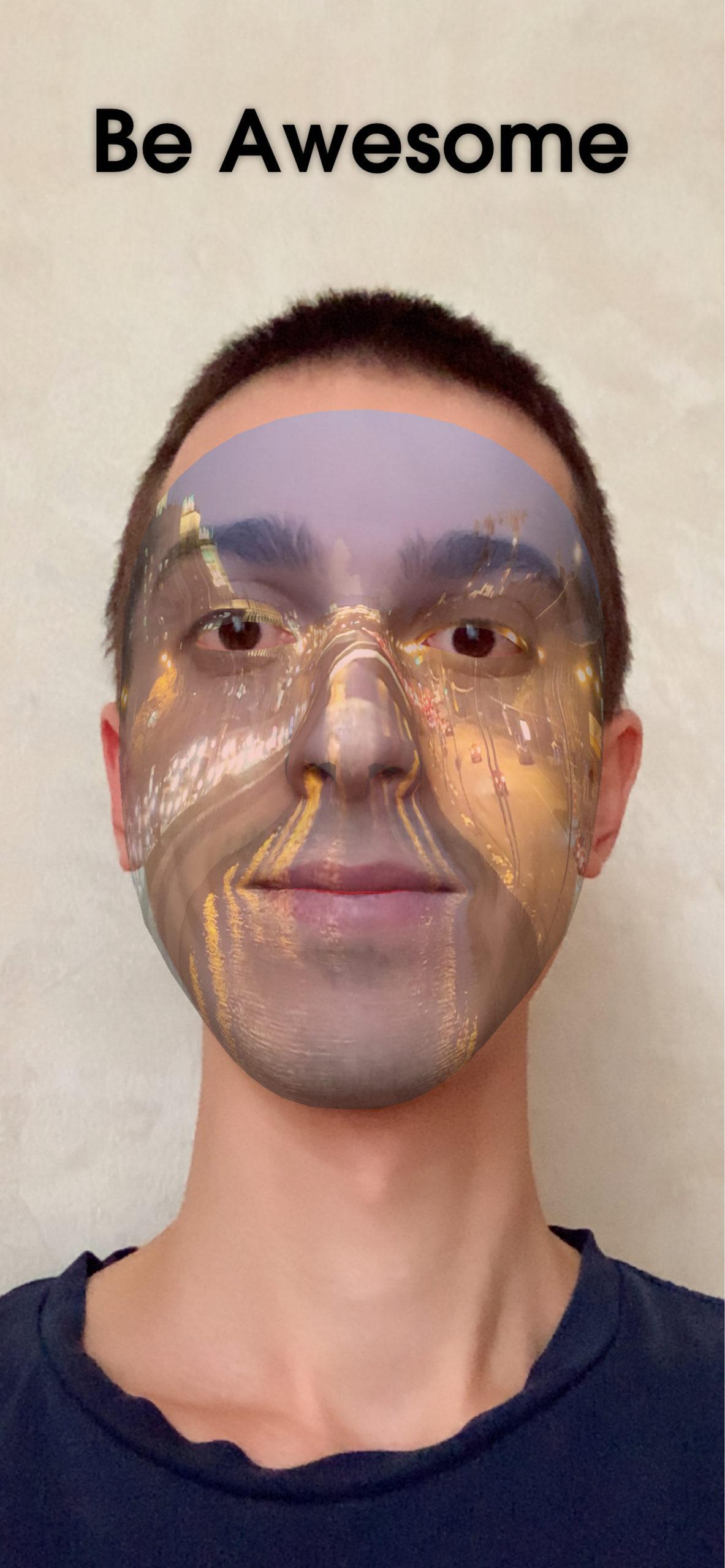


App Modes: AR and Non-AR
You can choose App Mode on the Demo Scene before the start:
- AR Mode (if it’s available, the user can see a button to activate it) with the Real Face Tracking using the AR Foundation (ARCore, ARKit) — Augmented Reality engine.
- Non-AR Mode (beta) — Image/Video Texture Generator.
Toggle Remember my choice is available on the Panel Select Mode.
Changing the App Mode is available on the Panel Settings.
Features of AR Face Tracking App
This Unity Asset brings the Magic of Personalization to your amazing Media Content:
- Express Yourself with Unlimited Variations of Customization.
- Load Media (Photos & Videos) from Phone Gallery in Real-time.
- Control Media Parameters as you want.
- Take Photos & Record Videos.
- Share Content with Friends on Social Networks.
- Test in the Unity Editor.
Package Contains
- Unified Demo Scene for Both App Modes.
- Scene with Camera Permission Request.
- Scene with Storage and Mic Permission Requests.
- Loading Screen to switch scenes seamlessly.
External Dependencies are not included in the package and must be installed (or purchased) separately.
Check the Map of Unity Assets to choose the product that best suits your needs.
Dependencies
Free
- Native Camera:
- Camera Permission Request,
- Openning Native Settings of App.
- Native Gallery — Operating with Phone’s Gallery:
- Picking Images/Videos,
- Saving Images.
- Android Runtime Permissions — Microphone Permission Request.
- Native Share — Sharing Photos.
- CompactExifLib — Checking Media Orientation in Editor.
Free or Paid
Video Recording
Unity Asset uses the AVPro Movie Capture plugin and Screen Capture feature:
- Best-in-class Video Recording/Saving in Phone’s Gallery,
- Permission Requests: Microphone (iOS), Storage (Phone’s Gallery).
| AVPro Movie Capture Edition | FPS | Watermark |
|---|---|---|
| Trial — Free | Any — Tested with 60 | Yes |
| Basic | 30 | No |
| Mobile — Recommended | Any — Tested with 60 | No |
| Ultra — Redundant | Any | No |
Masks
A Mask is a Visual Effect with Set of Parameters that you can apply in different App Modes. Currently, Unity Asset provides 1 Mask — Custom Texture.
Custom Texture (Photo, Video)
Custom Texture Mask allows you to get Unlimited Variations of Appearance by Loading Textures (Photos, Videos) from the Phone Gallery onto:
- Your Face (AR Mode) — user create AR Face Mask / Face Filter;
- Imaginary Canvas (Non-AR Mode) — represented as a Quad Mesh.
Groups of Parameters
- Offset, Rotation (Media):
- Offset X,
- Offset Y,
- Rotation.
- Tiling, Wrap (Media):
- Tiling X,
- Tiling Y,
- Wrap Mode: Repeat, Mirror, Clamp.
Requirement: change Offset or Tiling at first.
- Color (Media).
- Text (Head Text).
- Transform (Head Text):
- Position X,
- Position Y,
- Position Z,
- Rotation,
- Font Size.
- Decorations (Head Text):
- Character Spacing,
- Word Spacing,
- Blur,
- Outline Width.
- Color (Head Text).
- Color: Outline (Head Text).
Manual
All UI is built with Unity UI (uGUI), except the Color Picker.
Mask Parameters
Groups of Parameters (Bottom Center of the Screen)
Groups of Parameters are Toggles at the bottom of the Screen that can control the State of Mask.
UI Options:
- Scrolling of Groups with Auto Activating & Snapping to the Screen Center.
- Group Reset when Second Click on Toggle for Activated Group.
Tools (Right Side of the Screen)
The Tool allows you to control the state of the target parameter.
App Template implements several Unified Tools that are used by different Groups of Parameters to provide Seamless UX during App Session. A Tool or Tools for Group of Parameters are showing on the right side of the screen when switching to the Target Group.
Unity Asset provides 3 Tools.
Vertical Slider
- Handle: Controls Normalized Numeric Value of Parameter (it can be from 0 to 1).
- When Available: Reversing Button (Yin and Yang icon): e.g., mirrors the media.
- Reset Button: Sets the Value to the Default State.
Color Picker
The Color Picker is built with the UI Toolkit in HSV mode and includes the following Visual Elements:
- Display: Old/New Color.
- Hue Wheel.
- Saturation and Value (Brightness) Square.
- Transparency (Alpha) Slider.

It works according to the multiplication system, so if the Uploaded Texture has black areas, you can’t change the colors of those areas.
Text
Entered Text will be shown in the target place.
Controls (Left Side of the Screen)
The Controls are a set of buttons:
- Upload the Texture (Media) from Phone Gallery:
- Photo,
- Video.
- Randomize Mask: Generate an Artistic Mask in Just One Click. Text will be untouched.
- Randomize Activated Group.
- Reset: Set all Parameters to default values except the Media Texture itself.
Unified Button Camera Record is intended for Every Camera Mode:
- Photo: Take Photo,
- Video: Start Video Recording. You can Stop Video Recording by a Tap on the Screen.
Photo Mode
Photos are saved automatically to Photos (iOS) or Gallery (Android) when you take a shot.
You can share a photo with the button in the left bottom corner (when available).
Video Mode
All UI elements are hidden during Video Recording. You can stop the recording by tapping anywhere on the screen. This technique provides maximum performance.
Videos are saved automatically to Photos (iOS) or Gallery (Android) after Stopping Recording.
The longer the video, the longer it takes to save it to the phone’s memory.
Media Folder
App’s Media Folder (Album) will be shown in the Console during saving, it depends on
the Hierarchy window: $ > $ Camera Modes Control > Capture from Screen : Output > Subfolder.
Limitations
The Resulting Video may have an Audio Delay:
- The more powerful your mobile device, the lower the audio delay.
All Photos / Videos are saved automatically to Photos (iOS) / Gallery (Android), but Sharing Video with the Button in the App is Not Available on iOS.
AR Mode Requirements:
- Front/Face/Selfie Camera.
- iOS: iPhone X or higher.
- Android: ARCore Supported Devices.
- To improve Tracking Quality and Frames Per Second (FPS):
- Increase the Amount of Lighting around you (mostly for Android).
- Turn Off Power Saving mode that cuts up to 70% of CPU speed (Android).
Tutorial
This tutorial is relevant for AR Face Tracking App 1.2.
Tutorial for the previous version can be found only in the asset folder.
Getting Started with AR Face Tracking App
Folders & Files in the package by default:
- Makaka Games;
- Plugins;
- XR.
Steps
If you have any issues with the first launch then just Reach Support and Get Help.
- Create a New Unity Project with Unity 6000.3.3 & the “Universal 3D” Template.
- File > Build Profiles > Platforms > Android, iOS > Switch Platform.
- Next Packages must be manually installed with Git & Unity Package Manager. I recommend using indicated versions to get a guaranteed experience:
- Native Camera 1.5.0.
Hash value for installing: 72f5ebba26c219b4c4cda202bff2f59bfdaa47f8
. - Native Gallery 1.9.1.
Hash value for installing: e05fc5a14fe582e4938d2597fc1401ca3fceafb0
. - Native Share 1.5.4.
Hash value for installing: 87dacbfa1d2123fe63706871ac56f161c3ba2f9d
. - Android Runtime Permissions 1.3.0.
Hash value for installing: 45e43c81309d5f21860681b10c55129dd4cddab2
- Native Camera 1.5.0.
- Download and import the AVPro Movie Capture 5.3.5 into Unity.
- Download and import the AR Face Tracking App into Unity.
- Go through the Warning Windows:
- Click “Import” to overwrite the Project Settings with predefined ones.
- Click “Install/Upgrade” for Unity Package Manager dependencies.
- “Import Unity Package” window:
- Click “Next”.
- Click “Import”.
- Go through the Warning Windows:
- Next Packages are provided with Unity Package Manager, and they are already installed for this Asset by default. If packages are missing (Warning Window did not appear) then install them again with Package Manager:
- Unity UI 2.0.0:
- Always Required: Window > TextMeshPro > Import TMP Essential Resources.
- AR Foundation 6.3.2;
- Apple ARKit XR Plugin 6.3.2;
- Google ARCore XR Plugin 6.3.2;
- Input System 1.17.0.
- Unity UI 2.0.0:
- Reopen Unity Project.
- Open Scene: Makaka Games > Face Tracking AR App > Scenes > Demo.
- Required for Android:
- Edit > Project Settings > Player > Android:
- Resolution and Presentation > Resizeable Activity > Uncheck.
- Other Settings > Configuration > Application Entry Point:
- Activity > Check.
- GameActivity > Uncheck.
- Edit > Project Settings > Player > Android:
- Test in the Unity Editor or Build.
“$” GameObject
Some Scenes have $ Game Object, which has the main control script for the scene.
Various modules interact with each other with the $.
Known Issues
Issue:
- iOS Unity Build Error — you’ve updated iOS, but your Xcode has system files for the old iOS.
Solution:
- Run Xcode with the attached device and install system files for your updated iOS automatically.
- Delete the old system files: System Setting > General > Storage > Developer.
- Build without errors.
Testing and Building
All tested platforms support Non-AR Mode. If AR Mode is available, the user can see a button to activate AR Mode on the Demo Scene before the start.
iOS, Android: AR & Non-AR
Most of the log messages are displayed in the Development Build.
With the Development Build flag enabled or disabled (better, but still affected) during Live Log Monitoring via USB or Wi-Fi, some app features can work slowly for the first call (Color Picker, Media Picking, Input Field Text, Video Recording) — it’s normal.
The whole App works faster in Release Build (when Development Build flag is disabled) and without Live Log Monitoring via USB or Wi-Fi.
Unity Editor
You can test All Modes in the Unity Editor: the AR mode uses ARKit and ARCore face meshes by default on iOS and Android platforms, respectively.
macOS note: the microphone is activated for Video Recording when permission is granted in:
System Settings > Privacy & Security > Microphone > Unity Hub.
Tested with Platforms
Mobile Platforms:
- AR & Non-AR: iOS on iPhone 15;
- AR & Non-AR: Android on Samsung Galaxy A71.
Support
First, read the latest docs online.
If it didn’t help, get the support:
Changelog
Check the current version of the AR Face Tracking App on the Asset Store.
The latest versions will be added as soon as possible.
1.2
Improvements:
- Unity 6000.3.3.
- AR Foundation 6.3.2.
- Native Share 1.5.4.
- Native Gallery 1.9.1.
- Android Runtime Permissions 1.3.0.
- AVPro Movie Capture 5.3.5.
- Disable the Unity Splash Screen to Load the App Faster.
- Smooth Reveal of the Color Picker tool and Mask.
Fixes:
- Video recording fails to start properly if the screen is clicked immediately after.
- iOS: “Limited” access to Photo Library blocks loading the Demo Scene.
- URP compatibility is not shown on the Asset Store.
1.1
Improvements:
- Namespaces for All Scripts.
1.0
- Release for Unity 6000.3.0.