AR Gallery (AR Foundation: ARKit/ARCore) — Unity Asset

AR Gallery (Unity Asset) — App Template in the Augmented Reality that implements a Demo Gallery of custom AR Objects with real-time shadows. AR Safety First.

Note: The asset is downloaded into your project as a Template (Complete Project) and has a free external dependency. Read the “Getting Started” Tutorial to Import it correctly.
Check out the Support section if you need help.

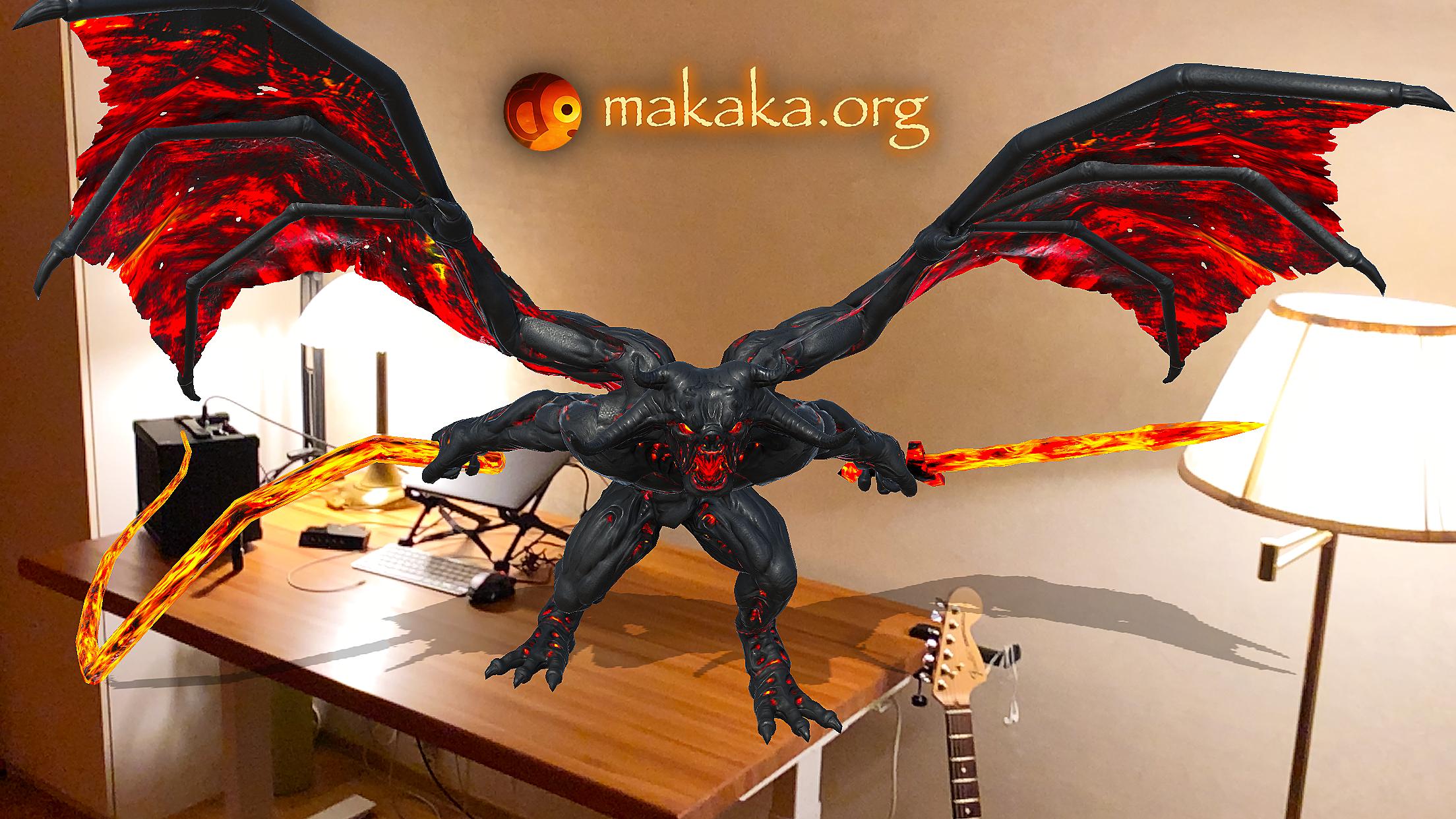
Demo Gallery Template is an Excellent Starting Point to Create Apps and Games with Augmented Reality.
AR Game Mode
Bring the enchanting Power of Augmented Reality using the AR Foundation (ARCore, ARKit) engine into your amazing AR Game or App:
- Real Plane Detection (includes tutorial, visual plane confirmation/resetting, Object Placing in a selected point on a detected plane).
- AR Safe Zone. The player needs to stay in the Safe Zone to avoid accidents during the game and continue the game itself! The player will be notified when leaving the Safe Zone.
- AR Onboarding UX with Transparent Video Manuals & AR States.
- AR Shadows & Light Estimation: estimates light data in the real world and applies it to game space.
- AR Foundation Support Checker allows assigning your own experience when AR is not supported (by default, it shows an informational message and link to requirements).
Features
- Gallery: Selecting Target AR Object via Toggle Group System (UI is generated automatically based on AR Objects in the Scene):
- Displaying Status Text: Show Name of AR Object on Activating.
- Second Click on Toggle: Hide/Show AR Object.
- Transform Control for AR Objects:
- Scale & Rotation: with UI Sliders & “Reset” Buttons.
- Position: Move Objects on Detected Plane with just a Finger.
- Button “Show/Hide UI” (aka “Screenshot Mode”).
Package Contains
- AR Gallery Scene with Cubes.
- Menu Scene.
- Permission Scene with Camera Permission Request using free Native Camera.
- Loading Screen to switch scenes seamlessly.
Check the Map of Unity Assets to choose the product that best suits your needs.
Tutorial
This tutorial is relevant for AR Gallery 6.0.
Tutorial for the previous version can be found only in the asset folder.
Getting Started with AR Gallery
Folders & Files in the package by default:
- Makaka Games;
- XR.
Steps
If you have any issues with the first launch then just Reach Support and Get Help.
- Create a New Unity Project with Unity 6000.3.10 & the “Universal 3D” Template.
- File > Build Profiles > Platforms > Android, iOS > Switch Platform.
- Next Packages must be manually installed with Git & Unity Package Manager. I recommend using indicated versions to get a guaranteed experience:
- Native Camera 1.5.0.
Hash value for installing: 72f5ebba26c219b4c4cda202bff2f59bfdaa47f8
- Native Camera 1.5.0.
- Download and import AR Gallery into Unity.
- Go through the Warning Windows:
- Click “Import” to overwrite the Project Settings with predefined ones.
- Click “Install/Upgrade” for Unity Package Manager dependencies.
- “Import Unity Package” window:
- Click “Next”.
- Click “Import”.
- Go through the Warning Windows:
- Next Packages are provided with Unity Package Manager, and they are already installed for this Asset by default. If packages are missing (Warning Window did not appear) then install them again with Package Manager:
- uGUI 2.0.0:
- Always Required: Window > TextMeshPro > Import TMP Essential Resources.
- AR Foundation 6.3.3.
- Apple ARKit XR Plugin 6.3.3.
- Google ARCore XR Plugin 6.3.3.
- Input System 1.18.0.
- uGUI 2.0.0:
- Reopen Unity Project.
- Open Scene: Makaka Games > ARGallery > Scenes > Demo.
- Test in the Unity Editor or Build.
“$” GameObject
Some Scenes have $ Game Object, which has the main control script for the scene.
Various modules interact with each other with the $.
Object Placing in AR
Simple Cubes are the Objects for Placing in AR by default. To set your own AR Game Objects in Unity Editor, place them under AR Objects On Confirmation game object as children instead of AR Objects by default in the same position on ARGround game object, keeping the hierarchy because the project is sensitive to it. Gallery Toggles will be generated automatically based on these AR Objects.
Testing and Building
If AR Mode is available, the user can see a button to activate AR Mode on the Demo Scene before the start. Otherwise, the user will see an informational message and a link to the requirements.
iOS, Android
AR Mode can be tested in the Unity Editor with AR Foundation > XR Simulation.
Tested with Platforms
- iOS on iPhone 15;
- Android on Samsung Galaxy A71.
Support
First, read the latest docs online.
If it didn’t help, get the support:
Changelog
Check the current version of AR Gallery on the Asset Store.
The latest versions will be added as soon as possible.
6.0 (Unity 6.3):
Improvements:
- Unity 6000.3.10 with Modern Standards of Project Settings (based on New Unity Project).
- URP (Universal Render Pipeline) to improve performance (instead of the Built-in Render Pipeline).
- Input System (New Standard in Unity) for All Project-related Scripts: instead of Input Manager.
- AR Foundation 6.3.3.
- Android: Vulkan Graphics API first (and Linear Color Space).
- Remove Unused Tags & Layers.
- Namespaces for All Scripts.
5.1 (AR Gallery Demo with Multiple AR Objects):
Features:
- Gallery: Selecting Target AR Object via Toggle Group System (UI is generated automatically based on AR Objects in the Scene):
- Displaying Status Text: Show Name of AR Object.
- Second Click on Toggle: Hide/Show AR Object.
- Transform Control for AR Objects (for flexibility, there is no using of XR Interaction Toolkit):
- Scale & Rotation: with UI Sliders & “Reset” Buttons.
- Position: Move Objects on Detected Plane with just a Finger.
- Button “Show/Hide UI” (aka “Screenshot Mode”).
Improvements:
5.0:
Improvements:
- AR Foundation 5.1.1;
- Unity 2022.3.15;
- Native Camera 1.4.2;
- Editor Testing: AR Foundation > XR Simulation (instead of Custom Solution).
3.1:
Improvements:
- Unity 2021.3.4;
- Native Camera 1.3.3;
- Consolidating some game logic in Game Control Script (ARShadowGalleryControl.cs) as in Complete Projects like AR Basketball (docs), AR Throw & Score (docs). It’s the best place to add your own game logic.
- Tutorial on Permission Scene is updated to changes of Android 12 (Samsung).
3.0 (Complete Template — Excellent Starting Point to Create AR Apps and Games):
Features:
- AR Onboarding UX with Transparent Video Manuals & AR States;
- AR Light Estimation: estimates light data in physical space and applies it to game space;
- AR Safe Zone. The player needs to stay in the Safe Zone to avoid accidents during the game and continue the game itself! The player will be notified when leaving the Safe Zone;
- AR Foundation Support Checker allows assigning your own experience when AR is not supported (by default, it shows informational message and link to requirements);
- Editor Testing: “Spectator Mode” allows simulation of smartphone motion (translational (WASDQE keys) & rotational (Right Mouse Button));
- Menu Scene with AR Safety Tutorial;
- Start Tutorial after Plane Confirmation;
- Using of Native Camera to check and request Camera Permission before the Demo Scene.
Improvements:
- Unity 2021.1.20;
- Plane Detection Tutorial: Loading Animation, Clearer Guidance;
- Modern Standards of Project Settings (based on New Unity Project).
2.1:
- Improved Plane Detection Demo with tutorial, visual plane confirmation/resetting & placing the Game Object (Cube);
- Restart Button;
- Unity 2021.1.12;
- TextMesh Pro for All Texts.
2.0:
- Unity 2021.1.